LightBlog

jeudi 30 décembre 2021

OnePlus 9 and 9 Pro get new OxygenOS 12 stable updates with bug fixes and improvements

Less than two weeks after resuming the OxygenOS 12 rollout for the OnePlus 9 and the OnePlus 9 Pro, OnePlus has started seeding yet another Android 12-based stable channel update for the device duo. The latest OxygenOS build for the OnePlus 9 family adds to the previous update with a few more optimizations and bug fixes.

OnePlus 9 Pro OxygenOS 12 C.40 OTA

Screenshot credit: OnePlus Community member Jite92

The version number of the new build is C.40, and it addresses the anomaly where the device is unable to access the 5G network after upgrading to Android 12. The release also takes care of the system upgrade failure events that some users faced while installing the previous stable build of Android 12. According to the official announcement post, only the global and the Indian variants of the OnePlus 9/9 Pro are eligible for this update. We still don’t know when the European edition will get the fixed build of OxygenOS 12.

As with all OxygenOS updates, OnePlus is rolling out the latest OxygenOS 12 build for the OnePlus 9 and the OnePlus 9 Pro in a staged fashion. This means that the new build will initially be delivered to a limited number of users, with a broader rollout to follow in the next few days. Once the company confirms that there aren’t any major issues with the update, it will be pushed to more users.

OnePlus 9 XDA Forums || OnePlus 9 Pro XDA Forums


Download OxygenOS 12 C.40 update for the OnePlus 9 and 9 Pro

In case you don’t wish to wait in the queue for the update, you can download the appropriate incremental OTA package from the index below and install the new build manually.

OnePlus 9

OnePlus 9 Pro


Thanks to XDA Senior Member Some_Random_Username for the download links!

The post OnePlus 9 and 9 Pro get new OxygenOS 12 stable updates with bug fixes and improvements appeared first on xda-developers.


from xda-developers https://ift.tt/3sSkVKi
via IFTTT

mercredi 29 décembre 2021

XDA Basics: How to change the default search engine on Safari for iOS

When users type a search term in Safari for iOS, the app displays Google Search results. That’s because the company pays Apple billions (!) of dollars every year to be the default search engine on Apple products. However, your iPhone doesn’t restrict you from changing it to a different one. There are plenty of reasons to why someone wouldn’t want to use Google’s service. This includes having more private options that even allow you to disable ads for free — such as DuckDuckGo. Here’s how to change the default search engine on Safari for iOS.

How to change the default search engine on Safari for iOS

How to make your iPhone read articles out loud with a single swipe

  • Launch the Settings app on your iPhone.

How to change the default search engine on Safari for iOS

  • Scroll down and click on Safari.

How to change the default search engine on Safari for iOS

  • Tap on Search Engine.

How to change the default search engine on Safari for iOS

  • You can choose Google, Yahoo, Bing, DuckDuckGo, or Ecosia. Select the one that you want as your default search engine.

How to change the default search engine on Safari for iOS

  • Voila! Now when you search in Safari, you will get results on the website you’ve chosen. You can change it to a different one at any time.

Personally, I use DuckDuckGo as my default because — as I’ve mentioned — it’s more private and allows me to disable ads in search results. Different users will have other reasons for choosing their main search engine. The Cupertino giant allows you to choose between five popular options. Rumors have surfaced in the past regarding the possibility of Apple releasing its own search engine. However, there are no expectations or signs pointing to when (and if) we will eventually see that.

Based on my usage, Google sometimes provides more accurate search results. Additionally, it enables you to include personalized results that pull private data from other Google services that you use. As someone who doesn’t rely on what the company offers, though, this feature is useless to me. While DuckDuckGo isn’t as precise as Google, it still works just fine for quick, daily-life searches.

Which search engine do you use the most, and why? Let us know in the comments section below.

The post XDA Basics: How to change the default search engine on Safari for iOS appeared first on xda-developers.


from xda-developers https://ift.tt/3HoycOK
via IFTTT

HDMI 2.1a will reportedly debut at CES 2022

HDMI is a confusing mess of standards and ports, with many features optional for manufacturers to implement. For example, even though HDMI 2.0 can support 4K at 120Hz, not all TVs and consoles with HDMI 2.0 are built for that. Now it seems there’s another HDMI update on the way.

According to The Verge (the HDMI Forum has yet to reveal anything), the new HDMI 2.1a standard will be introduced at CES 2022. The main new feature with HDMI 2.1a will be Source-Based Tone Mapping, or SBTM for short, which offloads some HDR tone mapping to the content source (e.g. your console, set-top box, or PC) instead of the TV or monitor doing all the work on its own. The feature will also allow better mixing of HDR and SDR content on the same device. For example, you could be using a video editor that is rendered in SDR, but with the video thumbnails and preview in HDR.

Even though it doesn’t mention HDMI 2.1a specifically, a new page on the HDMI Licensing Administrator’s website describes the new functionality:

Source-Based Tone Mapping (SBTM) enables the source to send a video signal that takes full advantage of a specific display’s HDR capability by adjusting its output to take better advantage of each display’s potential. As with other HDR technologies, rather than adopt a fixed set of color and brightness ranges, SBTM allows the Source to adapt to a specific display. SBTM can also be used by PCs and gaming devices to eliminate manual user optimization for HDR.

The new SBTM feature is reportedly optional for device manufacturers to implement, so unless a TV, monitor, console, or other device says it supports SBTM, there’s no way of knowing for sure — even if it claims to support HDMI 2.1a. Keep an eye out for the first products to support HDMI 2.1a next week during CES 2022, which is increasingly becoming online-only.

The post HDMI 2.1a will reportedly debut at CES 2022 appeared first on xda-developers.


from xda-developers https://ift.tt/3FKWuT2
via IFTTT

These are the best ASUS PC cases you can buy in 2022

There’s no shortage of cabinets on the market for a new PC build. We’ve already added some solid options to our collection of the best PC cases. It includes a bunch of reliable cases from a lot of manufacturers including Lian Li, Corsair, NZXT, and more. In this article, we’ll be taking a look at some of the best ASUS PC cases on the market right now. ASUS has a ton of PC peripherals and components including PC cases. We think the ASUS PC cases are good options to consider if you’re looking to build a new gaming rig or a content creation workstation. So without wasting any more time, let’s get started with this list:

Navigate this article:

Best overall PC case: ASUS TUF Gaming GT501 White Edition

A white-colored ASUF TUG Gaming GT501 PC case

ASUS has a pretty good collection of PC cases on offer, but we think the ASUS TUF Gaming GT501 is one of the best PC cabinets you can buy on the market right now. The TUF Gaming GT501 is a mid-tower PC case with support for up to an E-ATX motherboard. It’s got metal panels all around and also has plenty of ventilation for airflow. The TUF Gaming GT501 isn’t exactly an airflow case. However, it comes fitted with a bunch of case fans and there’s enough to add more fans, radiators, and more.

The front panel of the ASUS TUF Gaming GT501, as you can see, is a solid metal panel with some perforations for airflow on the sides. We prefer something like a mesh front panel for better airflow, but this is still considered good in comparison to a lot of other options on the market. There’s a 4mm thick tempered glass side panel that lets you see the internals of the case, while the top is also a metal panel with vents for airflow. One of the best things about this PC case is that it comes with a handful of pre-installed case fans.

The ASUS TUF Gaming GT501 comes with three 120mm Aura Sync RGB fans on the front. Additionally, there’s also a 140mm PWM case at the back. There’s space to add as many as three more 120mm or two 140mm fans on the top panel to move more air in and out of the chassis. As for the radiator mounting options, there’s space to add up to a 360mm radiator on the top and on the front. you can also add a small 140mm radiator at the back. It’s safe to say that the TUF Gaming GT501 is a pretty good case for a gaming rig with plenty of cooling options.

There’s also a ton of space inside the chassis for good component clearance. As we mentioned earlier, you can mount up to an E-ATX motherboard inside this case. There’s enough to mount a GPU with a maximum length of up to 420mm and a CPU cooler with a maximum height of up to 180mm. You can also use a power supply unit with a maximum length of up to 240mm. The case also has plenty of space for cable management, which is always a good thing to have. One of the best things about this particular case is that it comes with a vertical expansion slot that lets you mount your GPU vertically inside the chassis.

You get a total of 7 horizontal slots in addition to 2 vertical slots. The case also has as many as three 2.5-inch and four 2.5-inch/3.5-inch combo drive bays. The front panel IO includes two USB 3.1 Gen 1 ports and audio ports. All things considered, the ASUS TUF Gaming GT501 is one of the best PC cases on the market right now. This is a pretty good option to consider for your next build, be it a gaming rig, a content creation workstation, or a simple productivity machine.

    ASUS TUF Gaming GT501 White Edition
    The ASUS TUF Gaming GT501 is one of the best mid-tower PC cases on the market right now. It also comes with as many as three pre-installed case fans.

      Features:

      Pros:

      Cons:

Best PC case for gaming: ASUS ROG Strix Helios

A black-colored ASUS ROG Strix Helios PC Case

It’s hard not to talk about the ASUS ROG lineup when it comes to gaming peripherals and components. The ROG product stack also includes a PC case called the ASUS ROG Strix Helios. There’s a lot to like about the ROG Strix Helios PC case and it’s our pick for the best PC case for gaming you can buy in 2022. The ASUS ROG Strix Helios is a mid-tower PC case with a bold design that screams gaming. The case is fitted with some RGB lights on the front panel. There’s an ASUS ROG logo on the front along with the “Republic of Gamers” logo.

The ROG Strix Helios PC case comes with a bunch of tempered glass panels and an aluminum frame to give it a solid structure. As you can see, the Strix Helios PC case has a tempered glass side panel on both sides. The front is also covered with a tempered glass panel with RGB lighting. The case features addressable RGB lights that can be controlled via the ASUS Aura sync feature. This particular mid-tower PC case has plenty of space inside the chassis for all the high-end components that you may want to install inside.

This particular case can accommodate up to an E-ATX PC case. You can also install a GPU with a maximum length of up to 450mm and a CPU cooler with a maximum height of up to 190mm. You can also mount the GPU Vvertically inside the chassis, but you’ll need a Riser cable. The case also has space for a PSU with a max length of up to 250mm and there’s more space for cable management too.

One of the best things about the ROG Strix Helios is that it comes with as many as three case fans on the front. You get three 140mm pre-installed fans on the front along with another 140mm fan installed at the back. In addition to the ones that are pre-installed, you can install three more 120mm or two more 140mm fans on the top panel. The Strix Helios case also comes with dust filters on the top, front, as well as bottom to keep the dust away from the internals. As for the radiator mounting options, the ROG Strix Helios case will let you mount up to a 360mm radiator on the top, up to 420mm radiator on the front, and a small 140mm radiator at the back. Between all the case fans and the radiator mounting options, it’s safe to say that the ROG Strix Helios has a ton of cooling options.

The ASUS ROG Strix Helios also comes with strong carry handles on the top that lets you easily carry the case around. You also get a solid selection of ports on the front panel IO. it includes as many as four USB 3.1 Gen 1 ports, a single USB 3.1 Gen 2 Type C port, a couple of audio ports, an LED control, and fan control buttons.

    ASUS ROG Strix Helios PC case
    The ASUS ROG Strix Helios PC case is a fantastic mid-tower gaming case that comes pre-installed with a bunch of fans and RGB lights.

      Features:

      Pros:

      Cons:

Best compact ATX/budget case: ASUS TUF Gaming GT301

A black colored ASUS PC case with RGB lights on the front

We’ve already added the ASUS TUF Gaming GT501 PC case to the collection one of the best mid-tower PC cases. In addition to that, ASUS also makes the TUF Gaming GT301 PC case. This one’s more of a compact case option for those who’re looking for something that’s a bit smaller than the bigger mid-tower chassis. The ASUS TUF Gaming GT301, as you can see, looks different from the other GT501 in more ways than one.

The ASUS TUF Gaming GT301 sports a metal front panel with honeycomb pattern air vents for airflow. This particular chassis has more perforations on the front for airflow compared to the GT501. The top also has a mesh panel to move more air in and out of the chassis. The side panel is a tempered glass panel that lets you see the internals of the build. As an airflow PC case, ASUS is bundling this particular chassis with up to three fans on the front along with a single fan at the back for exhaust. There are three 120mm Aura Sync addressable RGB fans on the front panel that can be easily controlled via ASUS Aura sync software.

In addition to the fans that are already installed inside the chassis, you can add two more 120mm fans on the top panel. As for the radiator mounting options, you can install up to 360mm radiator on the front panel and a single 120mm radiator at the back. The fact that this case comes with as many as four pre-installed case fans makes it one of the best compact ATX cases on the market right now. It also comes with dust filters to cover the top, front, and bottom panels, which is always a nice addition. You can also use liquid cooling for your build thanks to the support for a 360mm radiator on the front.

The TUF Gaming GT301 also has plenty of room inside the chassis for all the high-end components that you to install. You can use an ATX motherboard for the build and install a CPU cooler with a maximum height of up to 160mm. There’s also enough space to install a GPU with a maximum length of up to 320mm. The TUF Gaming GT301 has seven expansion slots and space for up to four 2.5-inch and up to 2 3.5-inch drive bays for external storage drives. The front panel IO of the case carries two USB 3.1 Gen 1 ports, a couple of audio ports, an LED control, and a PC reset button.

All things considered, we think the ASUS TUF Gaming GT301 is one of the best compact ATX chassis on the market right now. We think this is a perfect case for those who’re looking to build a gaming rig. It certainly has the gaming aesthetics to match with sharp edges and ROG straps on the front. This particular case is one only available in black-color option and you can hit the link below to find the best price for it online right now.

    ASUS TUF Gaming GT301
    The ASUS TUF Gaming GT301 is one of the most affordable PC cases in this collection coming at under $100.

      Features:

      Pros:

      Cons:

Best mini-ITX PC case: ASUS ROG Z11

A black-colored miniITX PC case with ASUS ROG logo on the front

The options are fairly limited when it comes to reliable mini-ITX gaming cases on the market for a PC build. Most of them are either pre-built machines or they aren’t as reliable as, say, a mid-tower or a full-tower chassis. The ASUS ROG Z11 is one of the few mini-ITX chassis that’s worth buying for your next PC build. There’s a lot to like about this mini-ITX chassis — be it the patented 11° tilt design or the tempered glass side panel that lets you see the internals of the case.

Despite being a mini-ITX chassis, the ASUS ROG Z11 case has enough space inside the chassis for high-end components for a gaming rig. You can also use liquid cooling inside the Z11, something that’s not possible in a lot of mini-ITX cases. One of the best things about this case is that it comes with a patented layout for the motherboard tray. It’s located at an 11-degree angle to make more room for airflow. The additional space created with this layout also allows for more heat dissipation around the CPU and the graphics card.

The ASUS ROG Z11 PC case also lets you install plenty of case fans inside the chassis. You can install two 120mm or 140mm fans on the top panel and two 120mm fans on the side. There’s also space to add either a 120mm or a 140mm fan at the bottom. As mentioned earlier, the ROG Z11 also lets you mount radiators for a liquid cooling loop. There’s space to add up to a 240mm radiator on the side and a 120mm radiator at the bottom. It’s not going to allow you to install a highly sophisticated liquid cooling solution, but it should be good enough to add an AIO liquid cooler.

In addition to that, the ROG Z11 also has some space to accommodate cables. This is possible due to the patented 11-degree layout design. Another thing that’s interesting about the Z11 miniITX case is that you can place the case in either vertical or horizontal position depending on the amount of space you have in your setup. The case also comes with dust filters on all sides, covering all possible openings.

Another interesting thing that’s worth pointing out is that the front panel IO includes a lot of ports for connectivity. You get two USB 3.2 Gen 1 Typen A ports, two USB 2.0 ports, and a single USB 3.2 Gen 2 Type C port. There’s also an ARGB control and a reset button on the IO panel that makes it easier to control both lightings as well as the system itself. Internally, you can install a miniITX motherboard inside the case. There’s also space to add a CPU cooler with a maximum height of up to 130mm and a GPU with a maximum length of up to 320mm. You can install both ATX as well as SFX PSUs inside the case, which is good. Overall, there’s a lot to like about the ROG Z11 miniITX case, and we think it definitely deserves a spot in this collection as one of the best ASUS PC cases you can buy right now.

    ASUS ROG Z11 mini-ITX PC case
    The ASUS ROG Z11 mini-ITX is one of the best PC cases on the market right now. The case offers plenty of useful features despite its small form-factor.

      Features:

      Pros:

      Cons:

Best full ATX tower case: ASUS ProArt Station PD5

A black-colored ASUS ProArt PC

Before we begin talking about the ProArt Station PD5 case, it’s worth pointing out that you cannot buy this case separately. Yes, quite the bummer but the ProArt Station PD5 is a pre-built machine and this particular PC case is exclusive to this build. You can always use the case to install other components later in the future and upgrade, but you cannot buy it separately from ASUS, at least not yet. The ProArt Station PD5 is one of the best full ATX tower chassis on the market right now.

This particular pre-built machine is packed with some of the most powerful internals. It comes with 11th gen Intel Core i9 processor and an Nvidia RTX 3070 GPU. You also get an option to configure the machine with Nvidia RTX A2000 graphics. The RTX A2000, for those of you who don’t know, is essentially a graphics card made for creative professionals to use in their workstation build. This GPU is tuned to perform better in creative workloads applications with dedicated drivers.

A PC that carries powerful internals like this one requires a beefy case with plenty of room inside for all the components as well as cooling. Well, the ProArt Station PD5 is built inside a full ATX tower which means there’s a lot of space inside. The case, as you can see, comes with a ton of vents around the chassis for airflow. There’s a grill panel on the front along with a mesh panel at the back for airflow. As a pre-built machine, the case is fitted with all the case fans, CPU cooler, and other cooling components to maintain the thermal output of the machine.

According to ASUS, the ProArt Station PD5 also handles noise output very well. The case and the cooling system have been optimized to generate less than 27dB noise at idle. It doesn’t exceed 40dB even under load, which is quite impressive. Having a silent PC is important for creative professionals, especially for those who are working in video production or a recording studio. The case is only available in one color option though, so your options are fairly limited. ASUS makes up for that by adding what it calls the Lumiwiz LED indicators. The front chassis of the case is fitted with a pair of light bars to indicate this status of CPU & GPU. It’s also made to indicate the rendering processes and heavy system load.

The fact that this particular PC case is not available separately to buy is indeed a bummer. ASUS’ ProArt portfolio has a ton of impressive components including motherboards, monitors, and other peripherals. We hope ASUS will make this chassis available to buy separately in the future. If not, we think the portfolio definitely needs a standalone PC case for creative professionals from ASUS. For now, you can buy the ProArt Station PD5 as a pre-built machine to get this case. You can hit the link below to find the best price for this machine right now.

Best ASUS PC cases: Final Thoughts

Well, that brings us to the conclusion of this particular collection. ASUS, as you can see, has very limited options when it comes to PC cases. That being said, the available options are some of the best cases you can buy for your next PC build. The ASUS TUF Gaming GT501 is worth checking if you’re looking to build a mid-range to a high-end PC. Those leaning towards an SFF build can check out the ROG Strix Z11 miniITX PC case whereas the ROG Strix Helios a reliable for enthusiast builds.

We encourage you to check out some of our other collections such as the best motherboards or even the best CPUs if you’re planning a new PC build. Alternatively, you can also join our XDA Computing Forums to discuss your build and get more recommendations from the experts in our community.

The post These are the best ASUS PC cases you can buy in 2022 appeared first on xda-developers.


from xda-developers https://ift.tt/3EF57wV
via IFTTT

XDA Basics: How to set up Windows Hello on your PC

Windows Hello is one of the coolest features introduced in Windows 10, and it allows you to unlock your PC using your fingerprint or your face. You can even use a USB security key this way. While biometric security wasn’t completely new to laptops when Windows Hello rolled around, it became much more common after that, and it also became standardized for any laptop that included it. But how do you set up Windows Hello? We’re here to help with that.

What you’ll need

The first thing you’ll need if you want to use Windows Hello is hardware that’s compatible. Most of the best laptops these days include either a fingerprint reader or an infrared camera for facial recognition. If you have a desktop PC or your laptop doesn’t have one of these things, though, you can buy an external device that handles Windows Hello for you. Check out the options below if you need a Windows Hello device, or see our list of the best webcams out there, a few of which support Windows Hello. If you’re looking to buy a PC, we have a list of Windows Hello laptops you might want to check out.

    Lenovo 500 Full HD Webcam

    Windows Hello camera

    A webcam with an IR sensor so you can unlock your PC easily.
    Kingston VeriMark Fingerprint Reader

    Fingerprint reader

    This USB-based fingerprint reader allows you to unlock your PC more easily.
    Yubico Yubikey 5

    Security key

    This USB and NFC-enabled security key can protect sensitive data on your PC and more.

Another thing you’ll need to set up Windows Hello is to be signed into your PC using a Microsoft account. Windows 10 and 11 already nudge you in that direction, though, so you should be good. You can always add a Microsoft account to your PC by going to the Settings app and choosing Accounts -> Your info. You’ll see the option to add a Microsoft account there. Once that’s done, we can get started.

Set up Windows Hello on your PC

If you just got a brand-new PC and you haven’t set it up yet, the easiest way to set it up is during the initial Windows setup process. After adding a Microsoft account, you can add a PIN, which is required for Windows Hello. Then, if your computer has Windows Hello hardware, you’ll be able to use your fingerprint or your face to set up Windows Hello.

If you’ve already set up your PC or you’ve just bought one of the devices above, here’s how to set up Windows Hello:

  1. Open the Settings app and go to the Accounts page.
  2. Click Sign-in options. All the Windows Hello settings are available at the top of this page.
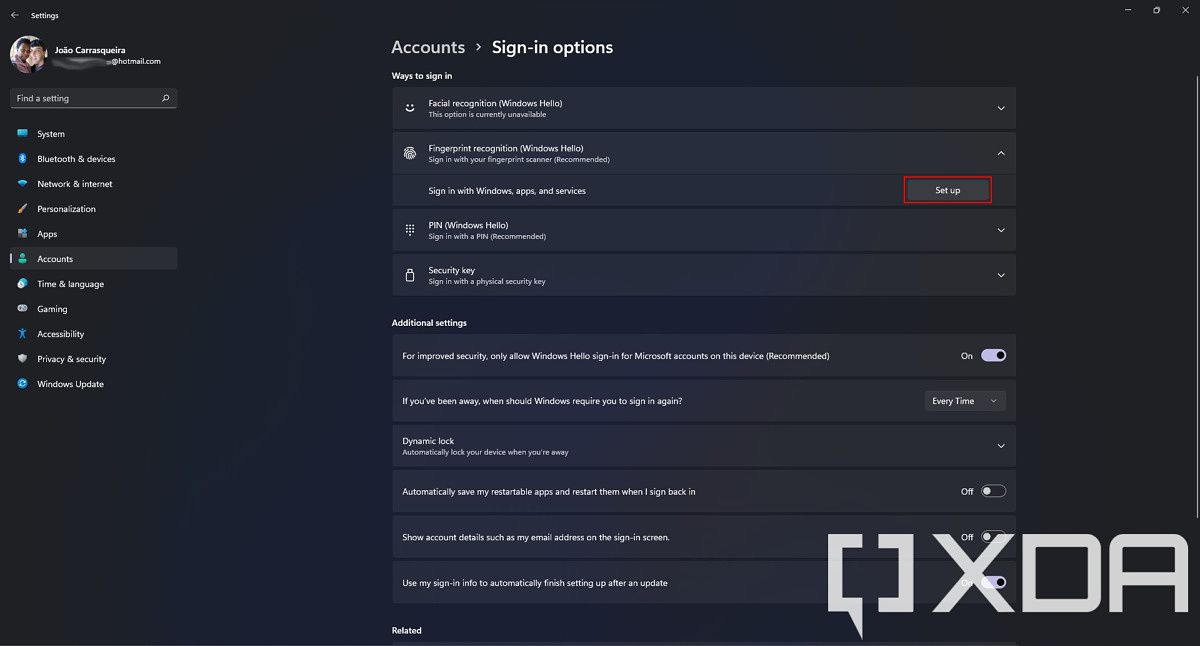
  3. Select the type of Windows Hello device you have, then click Set up to begin. If fingerprint recognition and facial recognition options aren’t available on your PC, you’ll see that indication, so this also lets you find out if your PC has any of these methods built-in.
    Windows Hello sign-in options
  4. If you haven’t set up a Windows Hello PIN, you’ll have to do that first. By default, a PIN only uses numbers, but you can use letters and symbols if you want to. You’ll probably want this to be different from your Microsoft account password, though.
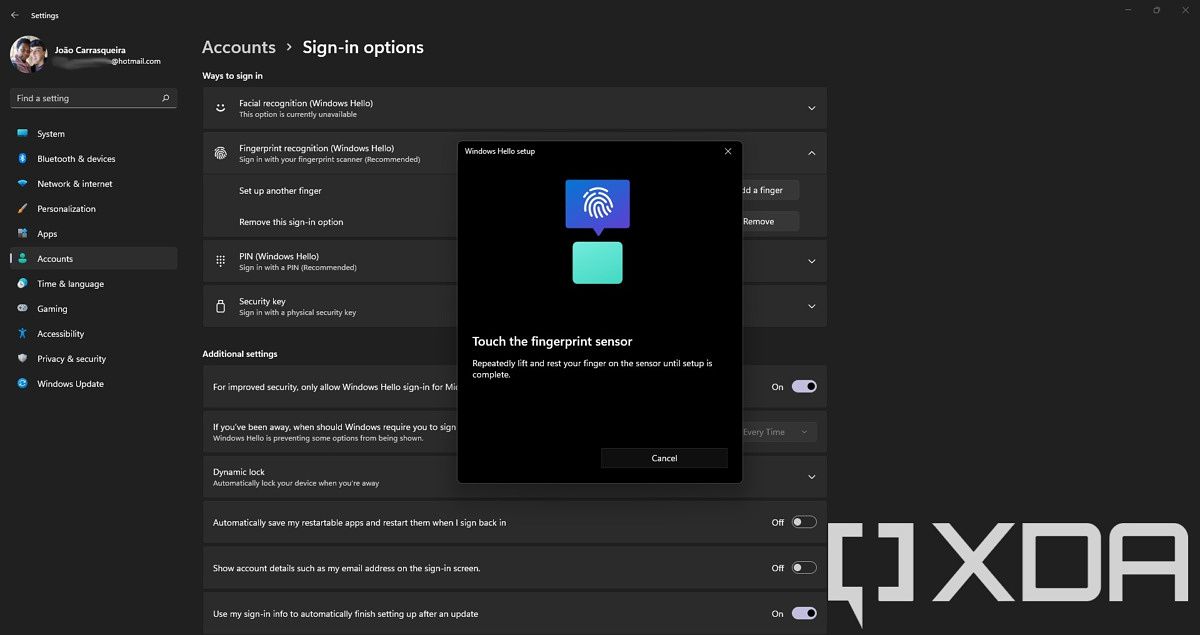
  5. Follow the instructions on screen to set up Windows Hello for your device. For facial recognition, you’ll need to line up your face and move it around. For fingerprint recognition, you’ll need to repeatedly tap your finger on the fingerprint sensor in different positions to register your fingerprint.
    • Can’t find your fingerprint reader? Many laptops have it built into the power button, while others might have it on the touchpad or below the keyboard.
      Adding a fingerprint in Windows Hello settings
  6. Once you’ve set up one face or finger, you can add more so you can use different fingers to unlock your PC or grant access to someone else.

And that’s it! You can now use your fingerprint or face to unlock your PC. You can press the Windows key + to go to your lock screen and test out Windows Hello. Tapping your finger on the fingerprint reader or simply standing in front of the camera should unlock your PC automatically from now on.

If you want to stop using Windows Hello, you can head back to the same page in Settings and remove Windows Hello as a sign-in option. You can keep using a PIN as a replacement for your Microsoft account password, which may be simpler and more secure.

The post XDA Basics: How to set up Windows Hello on your PC appeared first on xda-developers.


from xda-developers https://ift.tt/3JrVIfJ
via IFTTT

[Update: Rolling out in India] Realme rolls out stable Realme UI 3.0 to the Realme GT in China

Update (12/29/2021 @ 09:30 ET): The stable Realme UI 3.0 update for the Realme GT is now rolling out in India. Scroll to the bottom for more information. The article as published on December 23, 2021, is preserved below.

After weeks of testing Realme UI 3.0 in the beta channel, Realme has started rolling out the first stable release based on Android 12 to the Realme GT. The update brings all the new features Google introduced in Android 12, along with a couple of unique additions from Realme. At the moment, the stable Realme UI 3.0 update is limited to the Chinese variant of the Realme GT, but we expect the company to release the update for the global variant in the coming days.

As per a recent post on the Realme community forums, the stable update (software version RMX2202_11_C.10) has started rolling out to the Realme GT in China. The update is rolling out in a staged fashion and should reach all devices in the region within the next 15 days. Check the section below for the complete changelog.

Realme UI 3.0 (RMX2202_11_C.10) Changelog (machine translated)

  • Brand new design
    •  Newly added smart assistant card, providing smart and efficient application cards, key information is clear at a glance, and key functions can be reached with one touch
    • Newly restructured the page layout, noise reduction and white space, and distinguished primary and secondary information by color, the core information is more focused
    • Added three-dimensional icon design, introduced new materials, unified light and shadow and levels, and experienced the joy of color
    • Optimize the quantum animation engine 3.0, focus on “quality”, simulate real physical motion, optimize animation details 300+, and bring a more natural interactive experience
    • Optimized richer screen styles, support Zhenqi Meow and Portrait Shadow AOD, making self-expression more unique and unique
  • Convenient and efficient
    • Added note graffiti tool, personalized record of life
    • Optimized the smart sidebar
      • Support intelligent recommendation related functions in video, shopping and other scenarios
      • Added shorthand for small window, click to enter the floating window of notes, and complete the record quickly
      • Added smart subtitles, supports recognition of conference and call voices, real-time generation of subtitles, and supports translation between Chinese and English
      • Added recognition of background music, quickly recognize the background music in short videos, and find music without asking for help
      • Added article reading aloud, support one-click reading of WeChat official accounts, today’s headlines and other information content
      • Added product price comparison, when using shopping software, one-click display of the same good products at low prices
    • Optimized Shinda window upgrade to free floating window
  • Security and Privacy
    • Added support for erasing location information and shooting data for sharing photos or videos
    • Optimized that after the mobile phone is lost, it can be locked through the cloud so that it cannot be shut down or used, reducing the risk of data loss
    • Optimize the mobile phone manager to integrate more security and privacy functions such as privacy doubles, codebooks, emergency calls, etc.
    • Optimize the status bar icon reminder to be more eye-catching when the application calls sensitive permissions such as camera, recording, positioning, etc.
    • Optimize the medical emergency card, support automatic transmission of the preset medical emergency card information to the emergency center when dialing 120
    • Optimize earthquake early warning, add function preview page, add earthquake banner notification reminder with estimated intensity 2.0 and below, and provide early warning of earthquake information at all times
    • Optimize harassment interception, add MMS interception capabilities to reduce the interruption of spam
  • Performance optimization
    • Added intelligent prediction of frequently used applications and loaded them in advance, making applications open faster
    • Added graphs to display power consumption records to quickly understand battery consumption details
    • Optimized for faster response when switching WLAN, Bluetooth, airplane mode, and NFC
    • Optimize the loading speed of high-frequency scenes of third-party applications to increase the speed of scanning Weibo and watching videos more enjoyable
  • Game
    • Added that when the game resource pack is updated, the game can be switched to the background for update (only some games are supported)
    • Added pop-up game skills and match replays during the game to help quickly master the gameplay (only some games are supported)
    • Optimize the frame rate performance of the game under high load scenarios such as team battles to be more stable
    • Optimize heterogeneous computing to reduce the average load of the processor and lower game power consumption
  • Camera
    • Added a new order of custom camera modes, which is convenient for quickly switching to commonly used camera modes
    • Optimized inertial zoom, rear video shooting mode, drag the slide bar to zoom at a constant speed
  • System
    • Optimize the automatic brightness adjustment algorithm, optimize the intelligent scene detection, and browse the screen more comfortably
  • Accessibility
    • Optimize accessibility mode
      • Added a visual introduction, and added an image introduction to the function page
      • Optimize function classification, display according to visual/auditory/interactive/general classification
      • TalkBack adapts to more system applications such as albums, calls, emails, calendars, etc.

At the moment, Realme has not shared any information regarding a global rollout. However, it shouldn’t be long before the update starts rolling out in more regions. We’ll make sure to let you know as soon as Realme starts rolling out a stable build of Realme UI 3.0 for the global variant of the Realme GT.


Update: Stable Realme UI 3.0 is now rolling out for the Realme GT in India

According to a recent post on the Realme community forums, the stable Realme UI 3.0 update for the Realme GT is now rolling out in India. The update (build number RMX2202_11.C.05) has the following changelog:

  • New design
    • The all-new design, which emphasizes a sense of space, deliver a simple, clean, and comfortable visual and interactive experience.
    • Revamps the page layout based on the principle of reducing visual noise and spacing out elements, and prioritizes information with different colors to make key information stand out.
    • Redesigns icons using new materials to give more depth and a greater sense of space and texture to the icons.
    • Optimizes Quantum Animation Engine: Quantum Animation Engine 3.0 implements the concept of mass to make animations more lifelike, and optimizes more than 300 animations to bring a more natural user experience.
    • More creative Always-On Display: Adds realmeow and Portrait silhouette to let you freely express yourself.
  • Convenience & efficiency
    • FlexDrop is renamed Flexible Windows and is optimized:
      • Optimizes the method of switching floating windows between different sizes.
      • You can now drag a file from My Files or a photo from the Photos app to a floating window.
  • Performance
    • Adds Quick launch, a feature that detects the apps you use frequently and pre-loads them so you can open them quickly.
    • Adds a chart to display your battery usage.
    • Improves the responsiveness of turning on or off WiFi, Bluetooth, Airplane mode, and NFC.
  • Games
    • In team fight scenes, games run more smoothly at a stable frame rate.
    • Reduces the CPU load average and lowers the battery usage.
  • Camera
    • You can now decide which camera modes are displayed on the menu bar and in what order they are displayed.
    • You can now drag the zoom slider to zoom in or out smoothly when shooting a video using the rear camera.
  • System
    • Optimizes the auto brightness algorithm to adapt screen brightness to more scenes for a comfortable screen reading experience.
  • Accessibility
    • Optimizes accessibility:
    • Adds visuals to text instructions for an intuitive understanding of accessibility functions.
    • Optimizes categorization of functions by grouping them into vision, hearing, interactive actions, and general.
    • TalkBack supports more system apps including Photos, Phone, Mail, and Calendar.

Realme says that the update is rolling out in a staged fashion and it should reach all users in the region in the next few days.

The post [Update: Rolling out in India] Realme rolls out stable Realme UI 3.0 to the Realme GT in China appeared first on xda-developers.


from xda-developers https://ift.tt/3H6Vvwt
via IFTTT

mardi 28 décembre 2021

These are the Best Samsung Galaxy Z Flip 3 Cases in 2022

Samsung launched the Galaxy Z Fold 3, their best foldable phone yet, right alongside the Galaxy Z Flip 3 which is a compact, clamshell smartphone with high-end internals. If you’ve decided to get the more affordable Galaxy Z Flip 3, which by the way still isn’t cheap at almost a thousand bucks, the last thing you want to end up with is a scratched-up phone or even worse, a cracked display and back. The Galaxy Z Flip 3, like most modern-day smartphones, is made up of glass and no matter how resilient Gorilla Glass Victus is, it’s quite easy to shatter if you drop your phone on a hard surface. Samsung is portraying the Galaxy Z Flip 3 as a device that adds to your style statement and you can amplify that notion by customizing the phone with a good case.

While you can get a Samsung Care+ plan with the phone to cover accidental damage, it’s always better to prevent any damage from happening in the first place. The best way to protect your Galaxy Z Flip 3 would be to put on a case. Some cases not only provide protection but also improve the usability or the grip of your phone. Here are some of the best Galaxy Z Flip 3 cases that you can buy right now across various price segments.

    Galaxy Z Flip 3 Ring Case

    Ring on the back

    This ring case from Samsung will help you grip the Z Flip 3 better by letting you insert your finger into the ring while using the phone.
    Supcase Unicorn Beetle Pro

    Best grip and protection

    The Supcase Unicorn Beetle Pro offers top-class protection for the Galaxy Z Flip 3 while also making it easier to grip. If you drop your phone frequently, this case can be a saviour! It even comes with a belt holster.

    Promoted

    Samsung Belt Case

    Belt for grip

    This case has a belt on the back which you can slide your hands into while using the phone. It even gives the phone a cool look.
    Samsung Carbon Fiber Case

    Thin and classy

    If you're a fan of carbon fiber, you're really going to like this case. It's thin and doesn't add a lot of bulk to the device. Provides a stealthy look.
    i-Blason Cosmo Series Case

    Stylish and protective

    This case from i-Blason has a colorful design and stands out from the generic-looking cases. It also provides a good deal of protection.

    Promoted

    Sunstory Z Flip 3 Case

    Leather feel

    This case is made up of hard polycarbonate but has a soft leather feel on the outside. It's cheap and looks decent.
    Spigen Tough Armor

    Best protection

    This case from Spigen is for those who want the best protection against drops even on hard surfaces. it even looks good.
    Spigen Thin Fit

    Minimal protection

    Spigen is known to make good cases and this one for the Galaxy Z Flip 3 fits snug and provides minimal protection against scratches and drops.
    Ringke slim case

    Clear and protective

    This case from Ringke has a translucent back giving your phone a frosted look. It also provides a good deal of protection while being slim.
    Spigen Air Skin

    Another clear case

    If you want a crystal clear case from a reputed brand, this one from Spigen should be your option. It's slim and doesn't add a lot of bulk.
    VRS Design Quickstand Active

    Built-in kickstand

    The Z Flip 3 can technically be used as a kickstand in the Flex Mode but if you want more flexibility, this case has a kickstand built-in!
    Vizvera Hard Case

    Multiple color options

    The Galaxy Z Flip 3 comes in a variety of colors but if you want to switch it up, you can get a few of these cases in different colors.
    VRS Terra Guard

    Extreme protection

    This is one of the most rugged cases that you can find for the Galaxy Z Flip 3. It has a thick shell to protect the hinge too. If you drop your phone often, this one is for you.
    UAG Civilian

    Shockproof case

    If you want a slightly toned down version of a rugged case, the UAG Civilian is a good option. It does add some bulk but is surely not as thick as the VRS case we mentioned prior to this.
    Araree Canvas Diary

    Unique and convenient

    This is a fabric-style case that comes in different colors and has a lanyard attached on both sides of the hinge which lets you carry it on your shoulder like a bag.

Since the Galaxy Z Flip 3 has been launched recently and is a new device, there aren’t a lot of third-party cases you can buy at the moment. We’ve mentioned the best cases as of now which are mostly first-party cases directly from Samsung but there should be more options from case makers soon. The carbon fiber case is a thin case so if you’re looking for minimal protection with good looks, that’s the one you should opt for. If you’re looking for a case that will help you grip or hold the phone better when using it, the ring case and the belt case will serve the purpose well. If you want maximum protection, the Spigen Tough Armor is the case to pick.

    Samsung Galaxy Z Flip 3
    The Galaxy Z Flip 3 is Samsung's latest clamshell foldable that offers a bigger outer display, high refresh rate inner display, and top-of-the-line hardware.

If you’re looking to get your hands on the latest foldable from Samsung, you might want to check out the best Galaxy Z Flip 3 deals that can help you save a few extra bucks. If you’ve got the elder sibling, the Galaxy Z Fold 3, we’ve got a list of the best cases for that phone as well.

The post These are the Best Samsung Galaxy Z Flip 3 Cases in 2022 appeared first on xda-developers.


from xda-developers https://ift.tt/3yQvihS
via IFTTT